wiki
Interactive History Map Project
Helping out with the map making
Some of you might have experience making maps before. If you’ve used Inkscape our program is kind of similar in that it uses vectors. But it is a full blown GIS(Geographic Information System) so it supports embedding geographical information in the vectors, like coordinates and projection. We will be using Quantum GIS, a free and open source program but if somehow you are familiar with another program that can produce .shp files you can of course use that.
First thing you do should be downloading QGIS from this link. Make sure you download version 2.18. (If you are using Linux your package manager probably has an older version which won’t have some features we need.)
QGIS works in layers, similar to programs like gimp, photoshop and inkscape. We will work with three kinds of layers, vector layers where we will draw our maps, raster layers where we will add our reference raster(image) maps and tileserver layer which gives us the world map as seen on websites like google maps.
1. Adding a tileserver
First you should add a tile server so it’s easier to navigate the map and see if your reference rasters match up. This gif shows how to do it.
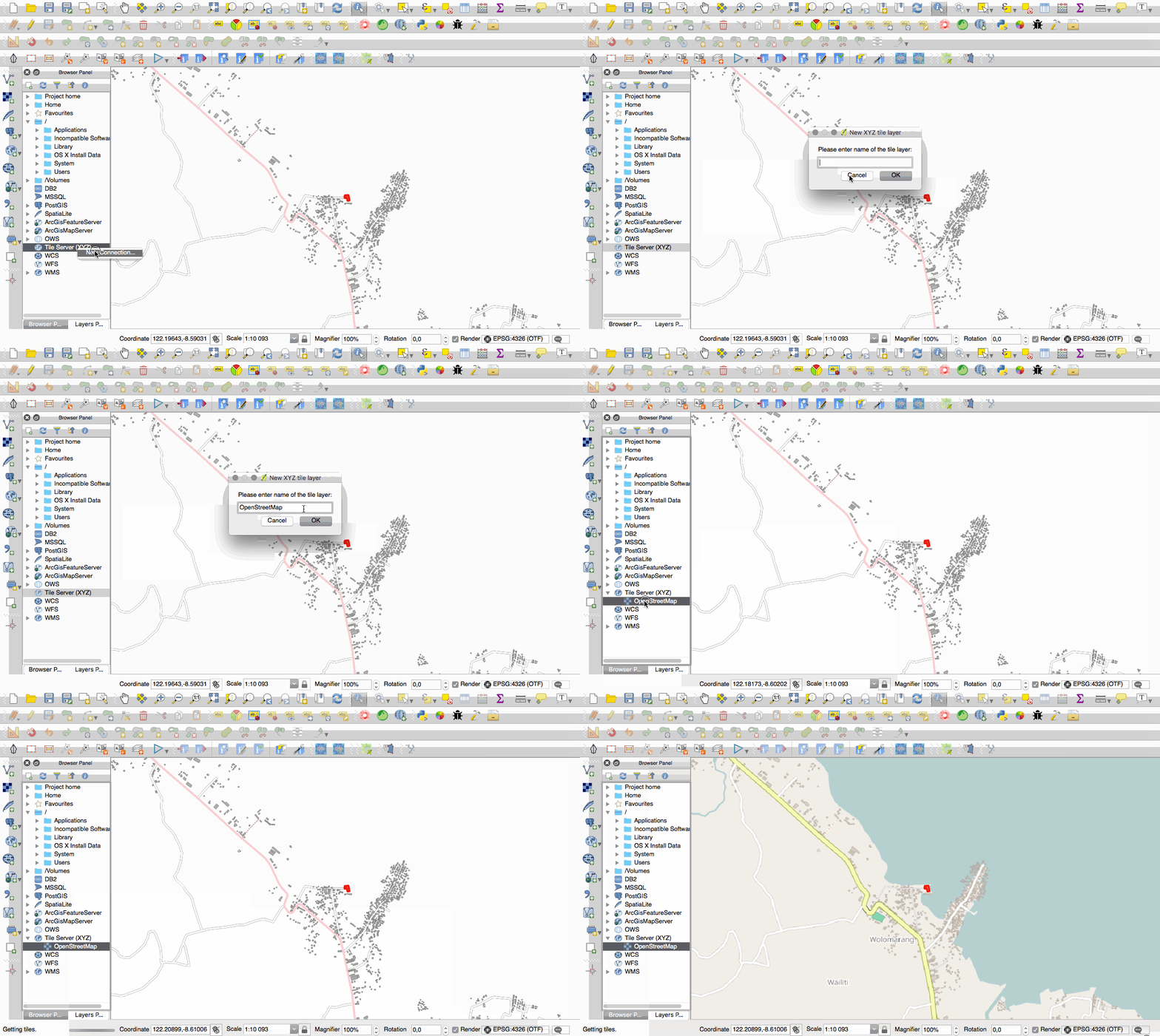
Here is the tileserver adress from the gif for copy-pasting: http://a.tile.openstreetmap.org/{z}/{x}/{y}.png
2. Georeferencing Historic Raster maps
Then you need to georeference the raster maps you want to digitize. Georeferencing warps the raster map so it matches up with our projection. Here is a tutorial on how to do it.
3. Creating vector maps
Lastly we will create the actual maps. Here is a good tutorial teaching all the aspects of working with vector layers.
Some things to keep in mind when creating your maps for this project is:
- Shapes that are not connected must be different features otherwise you will have trouble uploading them.
- Ask on slack which regions are still available currently before starting to work.
- You can use vector maps you’ve found online and edit them so you don’t have to trace over all of the coastlines etc. Just make sure that you don’t use any vector maps as a base that are not under permissive copyright (like creative commons and opendatabase license).
4. Uploading your creations
After you are done with a map it’s time for you to upload. Current place for uploading your maps is at http://historymap.ataalik.xyz/admin/signup/ . After signing up you should have access to the admin interface here. From here you need to do two things. First you need to add the state that the map is for. The required fields are the name of the state and the colour that it will be shown in the map with in color hex format (ie #ffffff). You can select a colour from here.
Then you need to upload the actual map. Find where the actual .shp file was was saved. Alongside it there should be other files with the same name and different extensions. Select all of them and compress them in a zip file. Then go back to the admin and select add shape. Select the state you’ve created before, select the start and end dates where this border is valid, select the zip file you just created from your computer on the file field and enter a citation for the source of the map. That should be it and your map should be online after this.